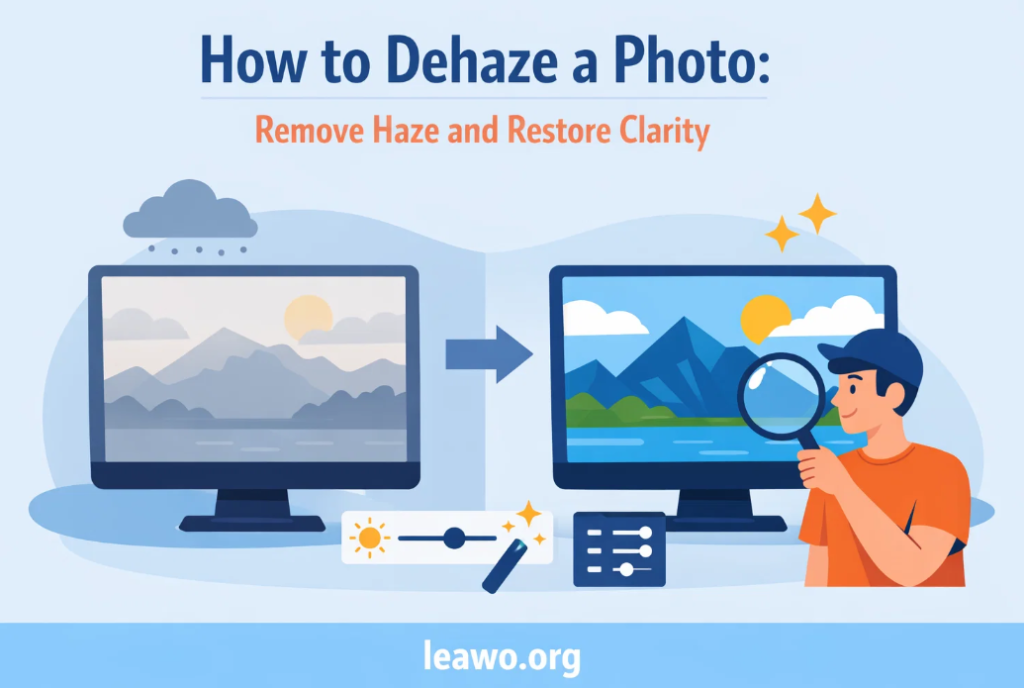
Photographers often face one common problem when capturing landscapes, city skylines, or distant subjects—haze. Atmospheric haze, fog, dust, and pollution can reduce contrast, wash out colors, and make photos appear dull or blurry. Even a beautifully composed shot can lose its visual impact when haze hides the details.
Fortunately, modern editing tools make it easy to dehaze photo images and bring back their original clarity. Whether you are a beginner or a professional photographer, learning how to dehaze a photo can dramatically improve your pictures. With just a few adjustments, you can restore contrast, enhance colors, and reveal hidden details that haze once covered.
Today, there are several ways to remove haze from images. You can use professional desktop software, online tools, mobile apps, or advanced AI-powered solutions that automatically enhance your photos. This article will guide you through different methods step-by-step so you can choose the approach that works best for your workflow.
Let’s explore how to remove haze and restore clarity to your photos.
How to Dehaze a Photo in Adobe Photoshop
Adobe Photoshop is one of the most powerful photo editing tools available. It offers multiple ways to reduce haze and improve image clarity. If you want precise control over your edits, learning how to dehaze in photoshop is extremely useful.
Method 1: Using Camera Raw Filter
One of the easiest ways to remove haze in Photoshop is through the Camera Raw filter.
Steps:
- Open your image in Photoshop.
- Go to Filter > Camera Raw Filter.
- In the Camera Raw panel, locate the Dehaze slider.
- Move the slider to the right to reduce haze.
- Adjust other settings like Contrast, Clarity, and Texture for better results.
- Click OK to apply the changes.
The Dehaze slider works by increasing contrast in hazy areas while enhancing color saturation. This can dramatically improve landscape and outdoor photography.
Method 2: Using Levels or Curves
Another technique is manually adjusting contrast.
Steps:
- Open your image.
- Go to Image > Adjustments > Curves.
- Create an S-shaped curve to increase contrast.
- Fine-tune shadows and highlights.
This method gives you more manual control and works well when haze affects only certain areas of the image.
Method 3: Using Layer Masks
Sometimes haze appears mostly in the background or sky. Layer masks allow you to target specific areas.
Steps:
- Duplicate the image layer.
- Apply contrast or clarity adjustments.
- Use a layer mask to apply the effect only where needed.
This selective editing technique helps maintain natural-looking results.
How to Remove Haze in Adobe Lightroom
Adobe Lightroom is widely used by photographers for quick and efficient photo editing. One of its most powerful features is the Dehaze slider.
Many beginners ask what does dehaze do in lightroom. The Dehaze tool works by analyzing the image and increasing contrast in areas affected by atmospheric haze. It restores depth and improves color saturation while maintaining natural tones.
Steps to Remove Haze in Lightroom
- Import your photo into Lightroom.
- Open the Develop module.
- Scroll to the Effects panel.
- Find the Dehaze slider.
- Move the slider to the right to remove haze.
- Adjust Exposure, Highlights, and Shadows if needed.
Tips for Best Results
- Start with small adjustments.
- Avoid pushing the Dehaze slider too far.
- Combine Dehaze with Clarity and Contrast adjustments.
- Use graduated filters to target the sky or distant objects.
Lightroom also allows batch editing, meaning you can apply the same dehaze settings to multiple photos at once. This is extremely useful for photographers who shoot landscapes or travel photography.
How to Dehaze a Photo Online
If you don’t want to install software on your computer, online tools offer a convenient solution. Many web-based editors allow you to quickly dehaze photo images directly from your browser.
Steps to Dehaze a Photo Online
- Upload your image to an online photo editor.
- Look for a Dehaze or Clarity adjustment tool.
- Adjust the slider until haze disappears.
- Fine-tune brightness, contrast, and saturation.
- Download the enhanced image.
Advantages of Online Dehaze Tools
- No software installation required
- Easy for beginners
- Fast processing
- Accessible from any device
However, online tools may have limited editing features compared to professional software. They are best for quick fixes and casual photo editing.
How to Dehaze a Photo on Mobile
Smartphone photography is more popular than ever, and mobile editing apps now include powerful features for removing haze.
If you are wondering how to dehaze a photo using your phone, the process is quite simple.
Steps for Mobile Dehazing
- Open a photo editing app.
- Import the image from your gallery.
- Look for Dehaze, Clarity, or Structure settings.
- Increase the value gradually.
- Adjust contrast and color balance if needed.
- Save the edited photo.
Popular Mobile Editing Apps
Many apps now include haze removal tools, allowing users to improve photos instantly. These apps often combine AI technology with manual controls to deliver professional-quality results on mobile devices.
Tips for Mobile Editing
- Avoid over-editing to keep photos natural.
- Zoom in to check details while editing.
- Adjust highlights and shadows to restore balance.
Mobile editing is perfect for social media creators who want to quickly enhance images before posting.
AI Tools That Automatically Dehaze Photos
Artificial intelligence has transformed photo editing. Modern AI-powered tools can analyze an image and automatically remove haze without manual adjustments.
An AI photo editor can detect haze, improve contrast, restore colors, and sharpen details in seconds. This saves time and eliminates the need for complex editing skills.
One example is Leawo Photo Enhancer, an AI-powered tool designed to improve image quality automatically. It uses advanced algorithms to enhance lighting, reduce noise, and remove haze from photos.
Benefits of AI Dehaze Tools
- Automatic enhancement
- Beginner-friendly
- Faster editing workflow
- Improved color accuracy
- Reduced noise and blur
AI editing tools are especially useful for photographers who need to process large numbers of images quickly. Instead of manually adjusting each photo, AI can handle the enhancements automatically.
Many AI platforms also support batch processing, making them ideal for professionals working with hundreds of images.
Quick Comparison Table
| Method | Ease of Use | Editing Control | Best For |
| Photoshop | Medium | Very High | Professional editing |
| Lightroom | Easy | High | Photographers and batch editing |
| Online Tools | Very Easy | Low to Medium | Quick fixes |
| Mobile Apps | Easy | Medium | Social media and casual editing |
| AI Tools | Very Easy | Automatic | Fast enhancement |
This comparison shows that each method has its advantages. The best option depends on your experience level and editing needs.
Conclusion
Haze can significantly reduce the quality of photos, making them appear dull, flat, and lacking detail. Fortunately, modern editing tools provide many ways to restore clarity and improve image quality.
Learning how to dehaze a photo allows photographers to reveal hidden details, enhance contrast, and bring back vibrant colors. Whether you use professional software like Photoshop, efficient tools like Lightroom, online editors, mobile apps, or AI-powered solutions, removing haze is now easier than ever.
For photographers who prefer manual editing, Photoshop and Lightroom provide precise control and powerful adjustments. Those who want a faster solution can rely on online editors or mobile apps. Meanwhile, AI tools are revolutionizing the editing process by automatically improving images with minimal effort.
The key to successful dehazing is moderation. Overusing dehaze adjustments can make images look unnatural or overly sharp. Always aim for a balanced result that maintains realism while enhancing clarity.
By mastering these techniques, you can transform hazy photos into sharp, vibrant images that truly capture the beauty of the scene. Whether you are editing travel photos, landscapes, or everyday snapshots, removing haze can dramatically elevate your photography.