The school iPad may feel like a personal device, but it still obeys strict rules. Even after students leave school, the iPad stays under remote control and limits. It stops many everyday actions like downloading apps or surfing freely. These controls come from MDM setups that remain even after a complete reset.
Many users think restoring the iPad will help, but restrictions quickly return. For those wanting regular access, using an iPhone unlocker tool can solve the problem soon. So, this article shows how to remove MDM and make the iPad truly yours again.
Part 1. Why School iPads Stay Locked (Even After Reset)
When a school iPad gets reset, it doesn’t actually leave school control forever. It soon reconnects to Apple’s servers and checks for management profiles still active. These iPads link to Apple School Manager, where each device is always supervised remotely. Even a complete factory reset cannot break the connection between the school and Apple servers.
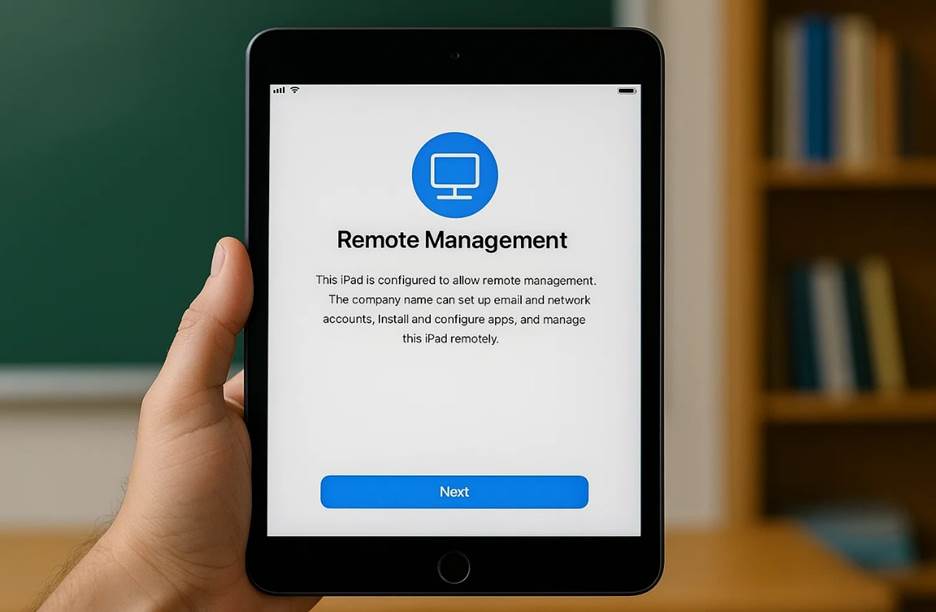
During setup, the iPad verifies its online identity to confirm ownership before final activation. If marked as a school device, remote management settings reactivate without user permission instantly. That’s why the “Remote Management” step repeatedly shows and cannot be skipped easily. Thus, the only way to truly free such devices is learning how to remove MDM from iPad.
Part 2. What You Can’t Do on an MDM-Locked iPad
MDM limits block many daily actions and make the iPad feel restricted today. In this part, you will explore what you can’t do with a locked device:
- Safari Limits: Browsing feels incomplete because many websites or searches get blocked. Students face messages saying sites are unsafe, even when they are harmless.
- App Store: The App Store may disappear entirely because supervision hides features from regular users. You cannot install favorite tools since the download options remain hidden under strict limits.
- Account Login: Adding new Apple IDs or iCloud accounts usually triggers access errors or blocks. This stops users from syncing their photos, contacts, or private documents safely online.
- File Sharing: AirDrop and iTunes sharing stay disabled under strong network restrictions. Thus, you can’t move personal media or backup essential files using other connected devices.
- Network Rules: WiFi actions feel limited because specific networks fail when MDM blocks the permissions. Students struggle using open hotspots since school rules restrict many required steps.
Part 3. Why Students Look for an iPad MDM Unlock Solution
Many students feel limited because school controls remain in place even after graduation. The constant blocks push users to find safe ways to remove MDM from iPhone or iPad. So, this part shows you multiple reasons why students look for quick solutions:
| Reason | Explanation |
| Streaming Needs | Students want to watch shows on Netflix without school blocks getting in the way. |
| Gaming Access | Popular games stay hidden, so players look for unlocks to enjoy their free time fully. |
| Social Apps | Apps like Instagram or TikTok get blocked, cutting off friends and daily chats. |
| Free Browsing | Safari filters hide useful sites, frustrating searches for news or hobbies. |
| Personal Customization | Students aim to add wallpapers and tweaks for a sense of actual ownership. |
| File Sharing | AirDrop and transfers fail, stopping easy moves of photos or music files. |
| Account Sync | iCloud logins often fail, losing contacts and notes from daily life. |
| Daily Freedom | Strict rules linger, making the iPad feel like school work forever. |
Part 4. Best Way to Remove MDM from iPad Without Credentials
Many students need a safe method because school controls continue blocking daily actions. To address this need, Dr.Fone – Screen Unlock (iOS) provides a safe removal option that doesn’t require the original MDM credentials. This tool removes MDM without deleting files or personal details from devices. Alongside that, it supports every iOS version, including the newest iOS/iPadOS 26 running on iPad.
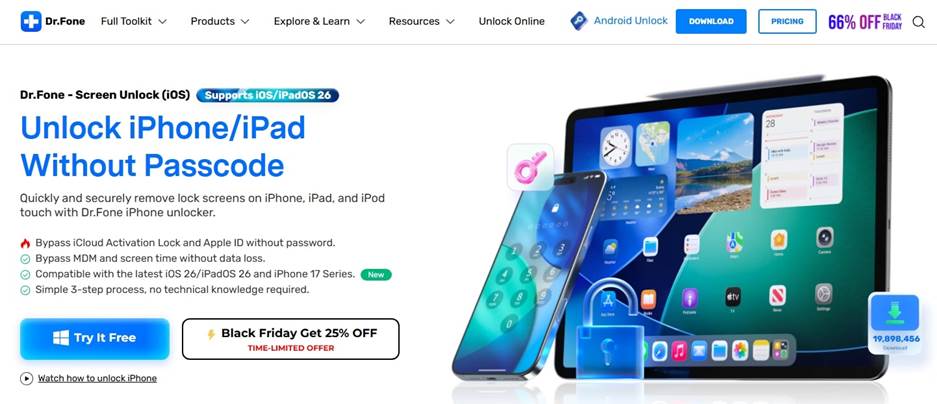
Students can even unlock supervised devices even when the system allows charging mode only. It also handles Apple ID locks and restores standard login options after removal. Also, students can enter new Apple IDs freely because all features return once unlocking finishes. Dr.Fone iPhone unlock even restores iCloud services immediately and keeps essential functions smooth for everyone.
Part 5. How Dr.Fone – Screen Unlock (iOS) Works
Dr.Fone makes the process simple by guiding users through clear on-screen steps. It prepares the device safely and checks connection details before starting any action. Plus, progress bars clearly show each stage, helping users follow the entire process efficiently. So, take guidance from the following steps to remove MDM from iPad without losing data:
Step 1. Access the MDM Removal Tool
Upon seeing the tool’s main screen, access the “Toolbox tab and pick “Screen Unlock” for “iOS.” Attach your iPad to the system and select “Unlock MDM iPhone” to move forward.
Step 2. Select the Option to Bypass MDM
When the following window appears, choose “Bypass MDM” to begin removing the remote MDM profile. Click “Get Start” and then press “Start To Bypass” to launch the bypass process.

Step 3. Finalize the MDM Removal
Follow the prompts carefully, including turning off Find My iPhone, before the bypass begins. After a while, the software will complete the MDM unlock and display a success notice.

Conclusion
Conclusion
To sum up, restoring full access helps students use the iPad like an actual personal device again. Removing school limits allows normal browsing and smooth account syncing daily. Those wanting easier control should try an iPhone unlocker for quick and secure results. With Dr.Fone – Screen Unlock (iOS), users can unlock the device safely without losing data. This tool gives a simple path to break free from constant restrictions and hidden settings.